Maestri Box
O Maestri em um servidor ou em um computador dedicado. Seus agentes trabalham lá dia e noite, e você se conecta de qualquer dispositivo.
Dê aos seus agentes o próprio computador.
O Maestri Box roda o Maestri num VPS ou numa máquina só para isso. Terminais, agentes e as conexões entre eles ficam rodando lá o tempo todo.
O trabalho pesado fica na Box
Builds, testes e execuções longas de agentes usam a CPU e a memória da Box, não as da sua máquina.
Agentes no espaço deles
Eles trabalham com os arquivos e as contas da Box, longe do seu computador pessoal.
Abra de qualquer dispositivo
Ela aparece como mais um espaço no Maestri para Mac, Windows e Linux. No Maestri Remote também.
Trabalhem juntos
Todo mundo que pareia trabalha no mesmo canvas, ao vivo, cada um com o próprio cursor.
Gerencie pelo Maestri
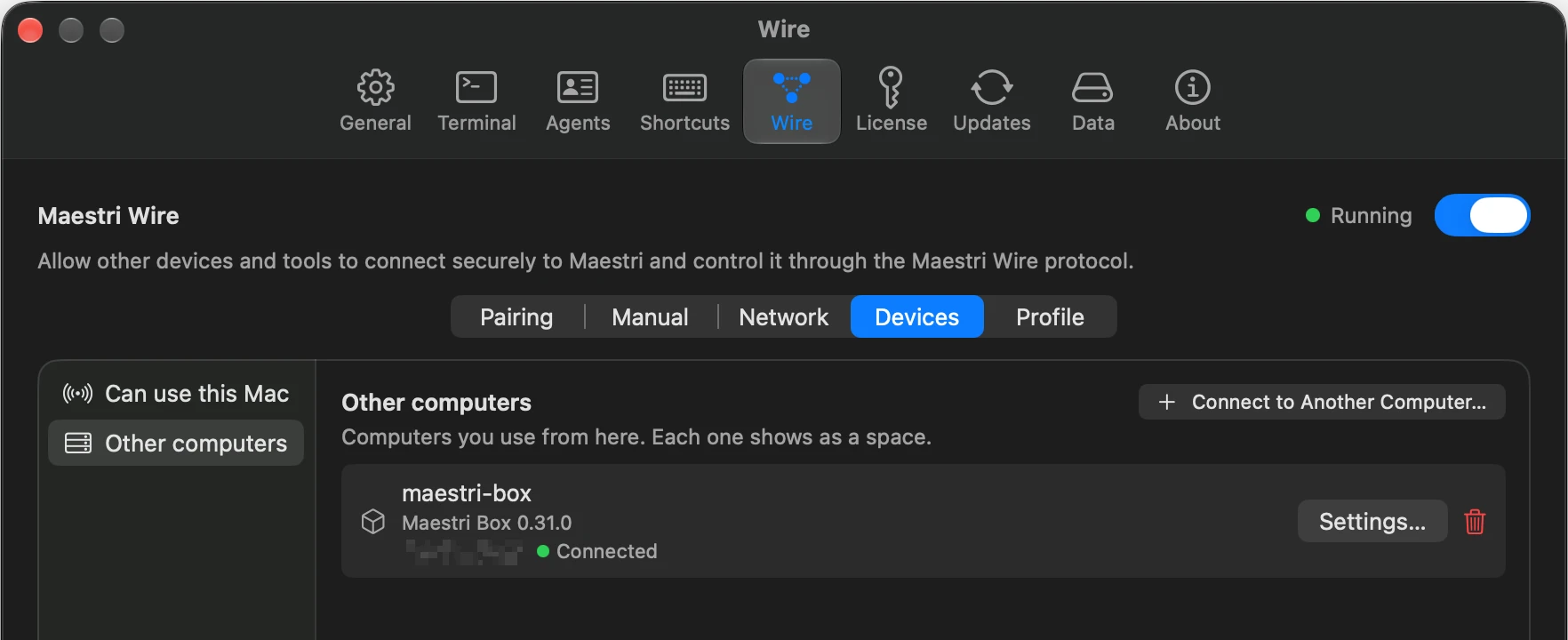
As configurações da Box abrem no Maestri do seu computador, com as mesmas páginas das suas: atualizações, licença, dispositivos pareados, contas dos agentes e mais.
Configure com um prompt.
Cole em um agente no Maestri, e ele guia você pelo servidor, pela rede e pelo pareamento.
Ler o prompt
I want to set up Maestri Box: Maestri running with no screen on a Linux server, so my agents keep working when my
computer is off, and I open its canvas from Maestri on my computer and from Maestri Remote on my phone. You are
running inside Maestri on my computer. Guide me from start to finish until my Box shows up in Maestri and works.

HOW TO WORK WITH ME
- One question at a time, in plain words. Explain a term the first time you use it (SSH key, firewall, NAT,
  Tailscale).
- Before each command on the server, say in one line what it does. Ask me before anything that uses sudo.
- Never ask me to paste a password, a license key or a sign-in code into this chat.
- You need Maestro Mode. Run maestri recruit --help first; if it says Maestro only, ask me to turn on Maestro Mode
  for this terminal and wait.
- THE SERVER SHELL. Anything interactive (SSH or sudo passwords, the QR code, a license key) happens in a plain
  terminal you place next to you on the canvas:
    maestri recruit "Server" --command "ssh <user>@<address>"
  Type into it with: maestri ask "Server" --raw "<command>\n"
  Read it with:      maestri check "Server"
  When it asks for a password, tell me to click into the Server terminal and type it there, and wait for me. A
  password prompt does not echo, so you never see it. Use your own shell for quiet checks
  (ssh -o BatchMode=yes ...), and the Server shell for every sudo step, so I see each one run.
- When I need a web page (a provider's console, a sign-in link), open it next to you with:
  maestri portal create "<url>" "<short name>"
- Don't move on until the current step is confirmed working. If something fails, read the error and the logs before
  changing anything.

FACTS
- Install: curl -fsSL https://themaestri.app/box/script.sh | sudo bash
  It installs the maestri-box package, runs it as a systemd service and is safe to run again.
  Options: --user <name> (run it as that existing account) or --system-user (a dedicated "maestri" account, right
  when other people will pair). Variables: MAESTRI_BOX_LISTEN_ADDRESS=<ip> (listen only there, from the first start),
  MAESTRI_BOX_PORT=<port>, MAESTRI_BOX_NO_PAIR=1 (skip pairing at the end).
  Flags go after "bash -s --", variables after "sudo".
- Supported: Ubuntu 22.04 or 24.04, Debian 12, x86_64 or arm64, a KVM VPS, a real machine or an LXC container.
  Not Alpine, not NixOS. 1 GB of memory for the Box alone, 2 GB or more if agents will run on it. About 1 GB of disk.
- It NEVER runs as root. It runs as the account given (or the one that ran sudo), and its agents use that account's
  projects, git, SSH keys and agent logins. A device paired with Full control can do anything that account can.
- Network: TCP 7434. Private with Tailscale (recommended, nothing is opened to the internet), or the port opened in
  the provider's firewall and the OS firewall.
- AWS, Oracle Cloud and Tencent Cloud put the public address in front of the machine (NAT), so pairing needs
  --host <public address>. Hetzner, Contabo, DigitalOcean and similar don't.
- Box commands, all as sudo maestri-box <command>: pair [--host <address>], status (exit 0 means listening), devices,
  remove <device>, password set | clear, license status | activate <key>, config, config port <n>,
  config listen-address <ip | all>, setup --user <name> | --system-user. Logs: journalctl -u maestri-box -n 100.
  After the install, sudo maestri-box --help is the source of truth if it disagrees with this prompt.

STEPS
1. Where. Ask: a VPS I already have, I need a VPS, a spare Linux computer, or Docker.
   - Need a VPS: explain the 1 GB and 2 GB sizes, suggest two or three providers (for example Hetzner, Oracle Cloud's
     free arm64, Contabo), open the one I pick in a portal, and wait while I create it with Ubuntu 24.04 and my SSH
     key. Never fill in sign-up or payment details for me.
   - A spare computer that is a Mac or a Windows PC: stop. Explain that the Box is for Linux, and that I should install
     Maestri on that computer, turn on Wire and leave it running instead.
   - Docker: say it is supported but new, and follow the Containers section of the Maestri Box docs (https://themaestri.app/docs/maestri-box) for the image.
2. Reach it. Ask for the address and the user I log in with. Test:
   ssh -o BatchMode=yes -o ConnectTimeout=10 <user>@<address> true
   - If it fails because there is no key: check ~/.ssh for one and make one with ssh-keygen if needed. Then place the
     Server shell as a plain local shell and type ssh-copy-id <user>@<address> into it (on Windows, which has no
     ssh-copy-id: type $env:USERPROFILE\.ssh\id_ed25519.pub | ssh <user>@<address> "mkdir -p ~/.ssh && cat >> ~/.ssh/authorized_keys").
     I type the server's password there. Test again, then type ssh <user>@<address> into the same shell.
   - Otherwise place the Server shell with ssh as above.
   - If I log in as root: ask for a name, create that account (adduser --disabled-password, then copy root's
     authorized_keys to it). The Box will run as that account; you keep using root to install.
3. Check the machine. In your own shell:
   ssh <user>@<address> 'curl -fsSL https://themaestri.app/box/script.sh | bash -s -- --check'
   It changes nothing and prints one ok, warn or fail line per check, each with its fix. Tell me in one or two
   sentences whether it fits. Stop on any fail and walk me through its fix.
4. Network. Ask: Tailscale (recommended) or an open port?
   - Tailscale: check whether this computer has it (tailscale status). If not, open https://tailscale.com/download in
     a portal for me. On the server: curl -fsSL https://tailscale.com/install.sh | sh, then tailscale up, which
     prints a sign-in link: open it in a portal and tell me to use the same account as on this computer. Read the
     server's address with tailscale ip -4.
   - Open port: open the provider's firewall page in a portal and tell me exactly which inbound rule to add: TCP 7434,
     from my own IP if I know it. On the server, if ufw is active: ufw allow 7434/tcp. Oracle Cloud also needs
     iptables -I INPUT -p tcp --dport 7434 -j ACCEPT and netfilter-persistent save. Tell me once that anyone who
     reaches the port can try to pair, and that they still need a code.
5. Install. Tell me what the command does, then type it into the Server shell. Logged in as root, with the account
   from step 2:
   curl -fsSL https://themaestri.app/box/script.sh | MAESTRI_BOX_NO_PAIR=1 [MAESTRI_BOX_LISTEN_ADDRESS=<tailscale ip>] bash -s -- --user <name>
   As a normal account:
   curl -fsSL https://themaestri.app/box/script.sh | sudo MAESTRI_BOX_NO_PAIR=1 [MAESTRI_BOX_LISTEN_ADDRESS=<tailscale ip>] bash
   If sudo asks for my password, I type it there. Then check: sudo maestri-box status must exit 0.
6. Pair this computer. Type into the Server shell:
   sudo maestri-box pair [--host <public address, only behind NAT>]
   It shows an address, a six-digit code and a QR code, renews the code every five minutes and waits. Tell me: in
   Maestri, open Settings > Wire, turn Wire on if it is off, then Devices > Connect to Another Computer, and enter the
   address and the code from the Server terminal. When pair reports a device, check with sudo maestri-box devices.
   If my computer can't connect: type sudo maestri-box doctor into the Server shell and follow the fix on each warn
   or fail. From this computer, nc -vz <address> 7434 with no answer means the firewall or the wrong address: go back
   to step 4.
7. Prove it. Ask me to open Spaces in Maestri, open the Box, open its workspace and start a terminal there. Wait for
   me to say it works.
8. Offer, one at a time, each optional:
   - My phone: type sudo maestri-box pair into the Server shell again and ask me to scan the QR code there with
     Maestri Remote.
   - Agents on the Box: in a terminal on the Box's canvas, install Claude Code or Codex there and sign in. The sign-in
     link opens on my side; I type any code myself.
   - License: the Box starts a 7-day trial. To activate, type sudo maestri-box license activate into the Server
     shell. It asks for the key without showing it; I paste it there.
   When we're done, ask before you dismiss the Server shell (maestri dismiss "Server").
9. Wrap up with a note on the canvas: maestri note create with the Box's address, the account it runs as, the network
   choice, how to add a device (sudo maestri-box pair), how to update (sudo apt upgrade), and where the logs are.
   Nothing secret in it.

RULES
- Never run the Box as root. Never turn off a firewall wholesale. Never open port 7434 without telling me what that
  means.
- No passwords, keys or codes in files, notes, logs or this chat.

LANGUAGE
- Talk to me in Brazilian Portuguese (pt-BR). Commands, file names and anything you type into a terminal stay as they are.
Prefere fazer por conta própria? Siga o guia na documentação
Mesma licença. Mesmo preço.
Uma Box nova começa com 7 dias de teste. Depois disso, ela fica com um workspace grátis, ou uma licença Pro libera todos.
Grátis
$0para sempre
- 1 workspace
- Agentes ilimitados
- Todos os recursos incluídos
Pro
R$95pagamento único
- Tudo do Grátis, mais:
- Workspaces ilimitados
- A mesma licença do Maestri no Mac, no Windows e no Linux
- 7 dias grátis, depois pague uma vez
Já tem uma licença? Ative a Box com um dos assentos dela.
Requisitos
- Linux
- Ubuntu 22.04 ou 24.04, ou Debian 12.
- Processador
- x86_64 ou arm64.
- Memória
- 1 GB, ou 2 GB se agentes rodarem nela. Cerca de 1 GB de disco.
- Rede
- Uma porta aberta para os seus dispositivos, ou uma rede privada.