File Tree
The File Tree node lets you browse your project's files right on the canvas — no need to switch to Finder or your IDE. It's a fully featured file manager embedded in your workspace.
Inserting a File Tree node
Select the File Tree tool in the top toolbar, then click and drag on the canvas to place it. The file tree opens at your workspace's working directory by default.
You can have multiple file trees on the same canvas, and each one independently remembers its own state — which directory it's showing, which folders are expanded, and which view mode is active.
View modes
Switch between four views using the toolbar at the top of the file tree node:
- List view — A hierarchical outline, similar to a file browser's list view. Supports back/forward navigation and Collapse All.
- Icon grid — A thumbnail-based view. Images, PDFs, and videos show Quick Look previews instead of generic icons.
- Diff — Your uncommitted changes, side by side with the original (see Diff view with agent integration below).
- Graph — The git commit history graph for the workspace's repository, with branch lanes and the same labels you'd see in a tool like
git log --graph. Available when the file tree's directory is inside a git repo.
Navigating files
Use the toolbar to change the root directory on the fly. Right-clicking a file or folder opens a context menu with options to create, rename, move, and delete.
Dragging files
You can drag files from the file tree directly onto:
- An agent terminal — Shares the file as context with the agent
- The canvas — Places it as a native preview node (images, PDFs, and videos are supported)
Tip
You can also drag external files from Finder directly onto an agent terminal or onto the canvas — you don't have to use the file tree for this.
Git operations
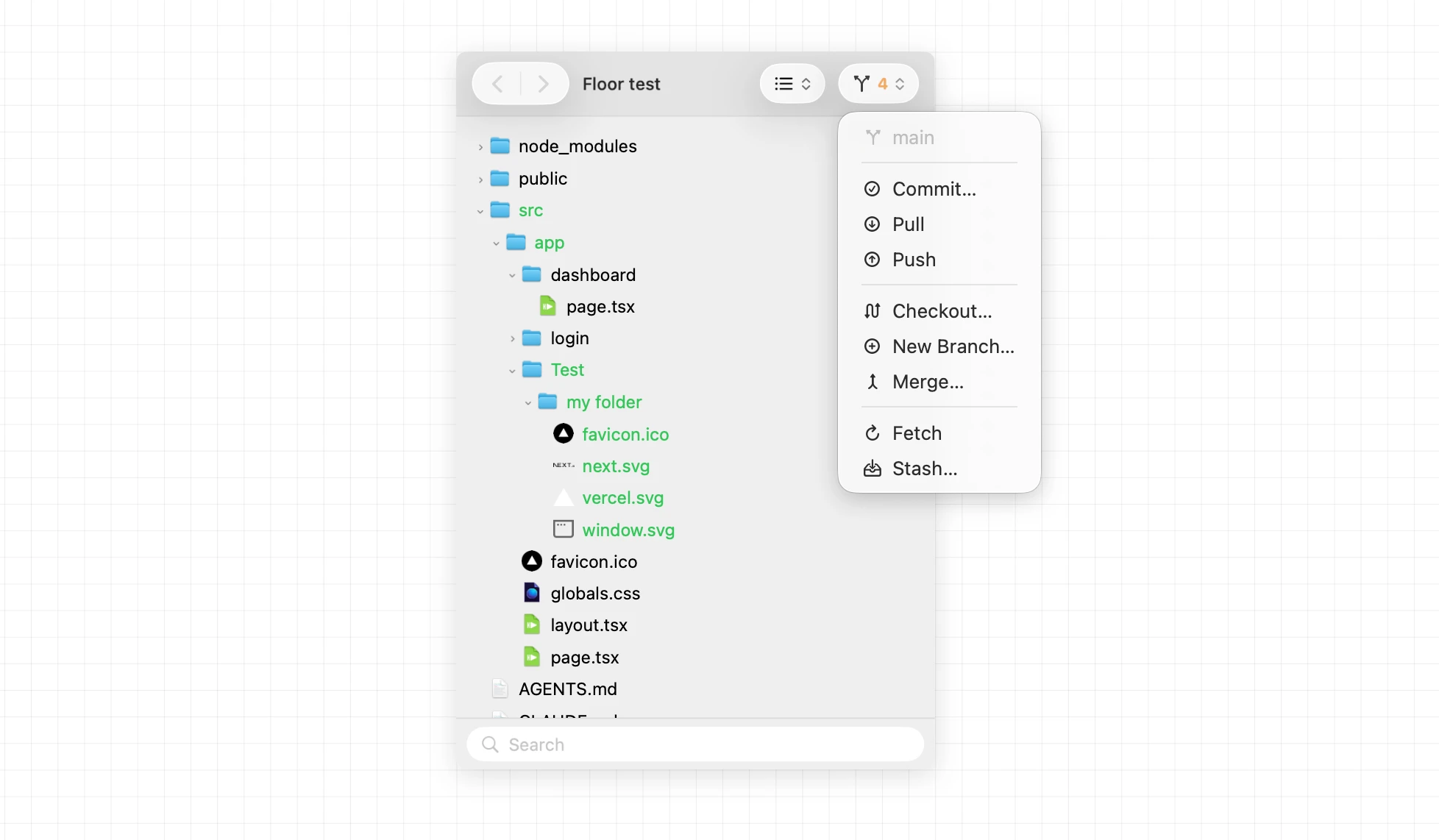
When your workspace is a git repository, the file tree includes a branch indicator at the top. Click it to open a menu with common git operations:
- Commit — Stage and commit changes
- Pull / Push — Sync with your remote repository
- Checkout — Switch to a different branch
- New Branch — Create a new branch from the current one
- Merge — Merge another branch into the current one
- Fetch — Fetch updates from the remote without merging
- Stash — Stash your uncommitted changes for later
These operations run directly in Maestri — no need to switch to a terminal or external git client for common tasks.
Editing files
Maestri has a built-in code editor that lives right inside the file tree node. It's fully native, custom-built for Maestri from the ground up, so you can make a quick edit without leaving the canvas or switching to an external IDE.
Open it in either of two ways:
- Click the editor icon next to the search field at the bottom of the file tree node.
- Pick Editor from the view menu at the top of the node.
With the editor pane open, select a file in the tree to load it.
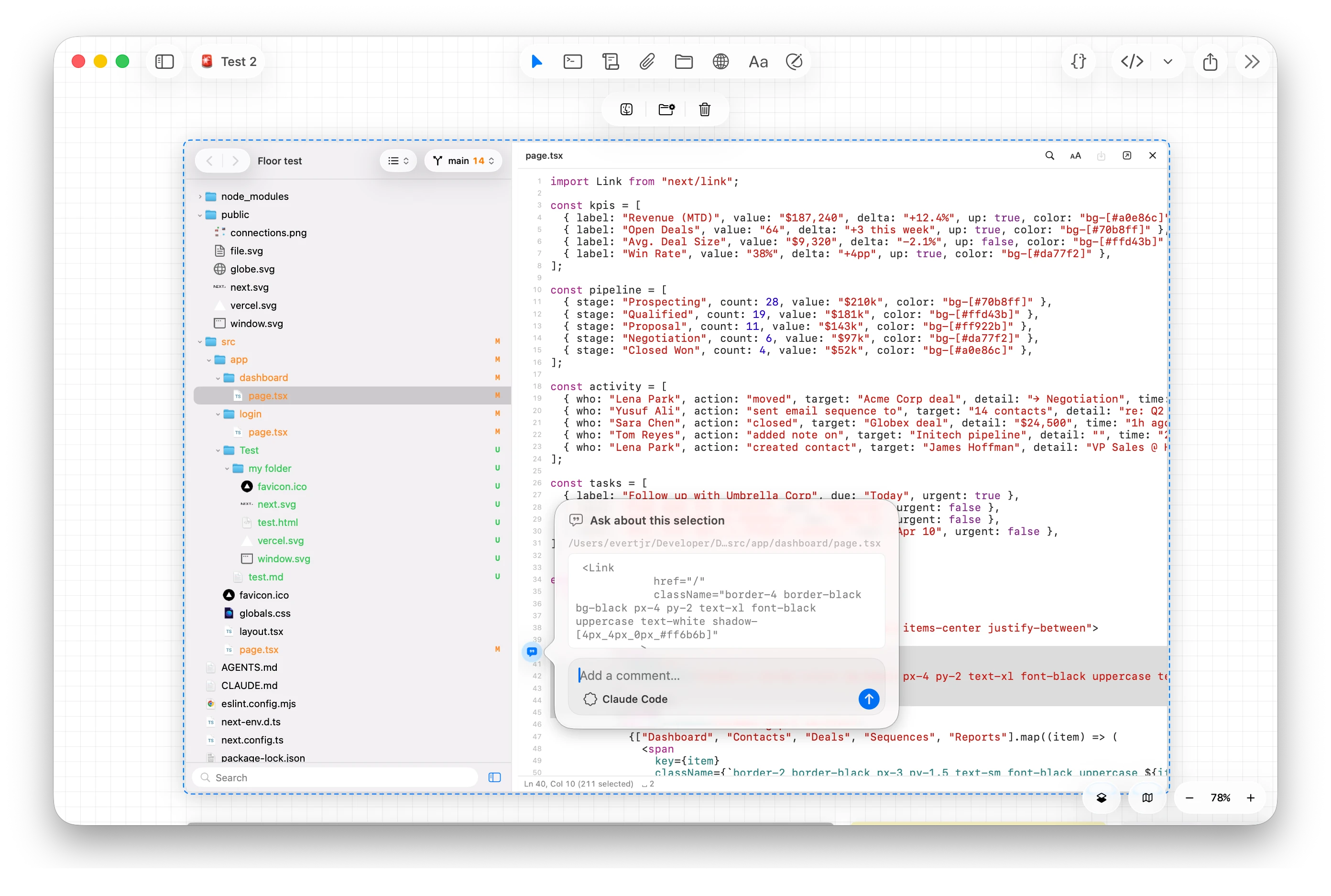
It has the essentials you'd expect from a modern code editor:
- Syntax highlighting across the languages you work in
- Find & replace within the file
- Multi-cursor editing to change many spots at once
- Auto-closing brackets that pair as you type
- Smart indentation detection that matches the file's existing style
- Line operations and go-to-line to move around quickly
Make it your own in Settings, where the font, tab size, and keyboard shortcuts are all configurable.
Tip
Select any text in the editor and a chat icon appears. Click it to quote the selection and send it straight to a connected agent. It's the fastest way to go from a question about some code to a working change.
Images, video, audio, and PDFs
The editor isn't only for code. Open an image, a video, an audio file, or a PDF and it opens in its own tab with a real viewer: a scrolling PDF, playback controls for anything with a timeline. Only the tab you're looking at mounts a viewer, so playback stops when you switch tabs, leave the floor, or scroll the node off screen.
It works over a connection too: a file on a remote machine is fetched before it plays.
Search files with ⌘P
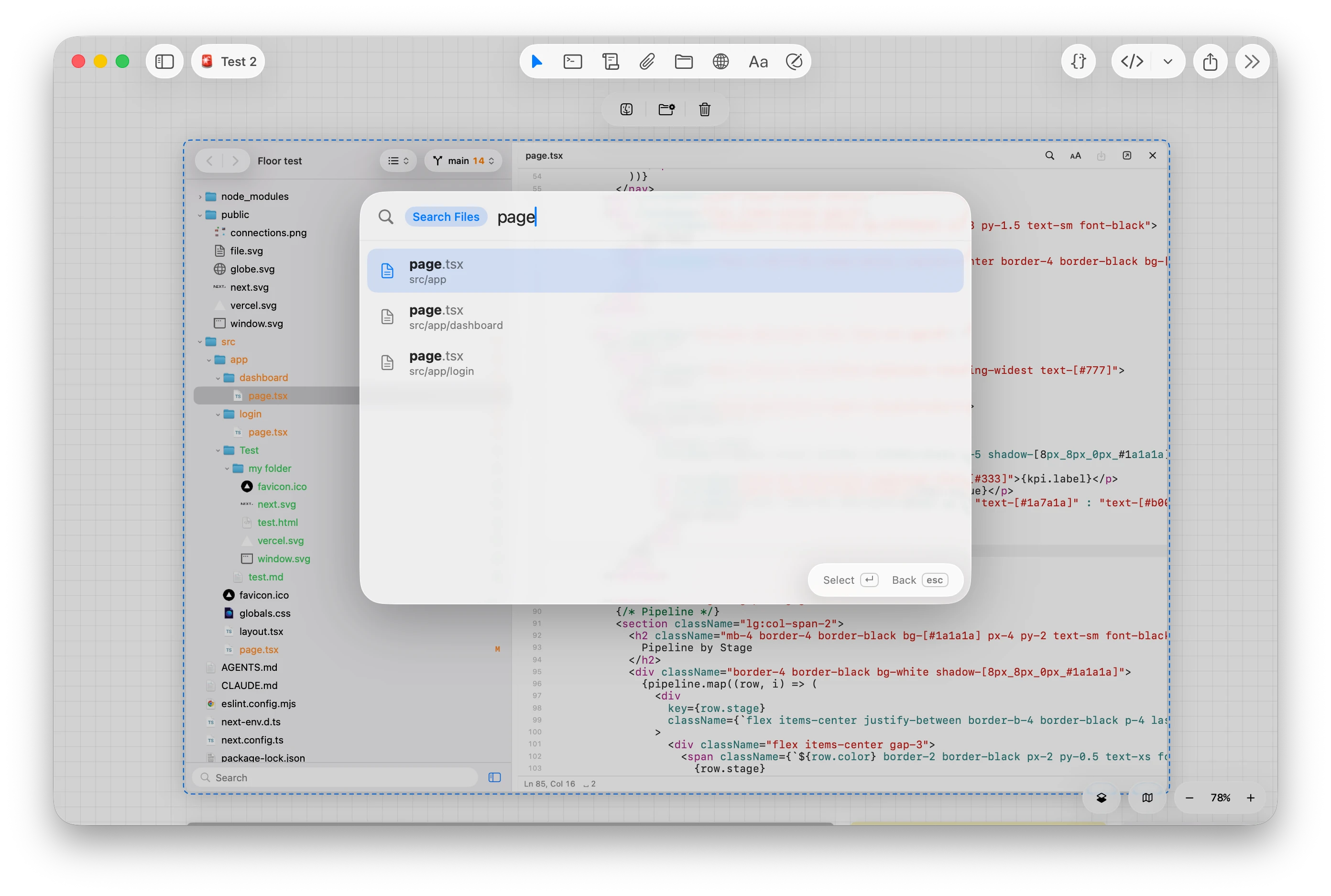
Select a file tree node and press CtrlP to open Batuta Search scoped to that node. Type to fuzzy-search every file inside it, with results ranked by relevance, then press Enter to open the top match straight in the editor. It's the quickest way to jump between files without scrolling the tree.
Search inside files
The search field at the bottom of the file tree node normally filters by file name. Type a > at the start of the field to switch it into content search, scanning the text inside the node's files instead. Each match lists the file and the line it was found on — click a result to open that file in the editor and jump straight to the matching line.
Diff view with agent integration
The file tree includes a built-in diff view that shows your uncommitted changes. Beyond reviewing diffs, it integrates directly with your agents — select any code block in the diff and a chat icon will appear. Click it to open a popover where you can quote the selected block and ask an agent to explain or refine it.
Watching an agent work
Leave a diff node deselected and it follows the agent. Each file the agent touches expands and scrolls into view as the edit lands, so a file tree parked beside a working terminal becomes a live view of what's being changed.
Only files whose header is off screen are scrolled to, so a diff you're reading is never yanked away. Select the node and following stops, on the assumption that you've taken over.