Terminals & Agents
Terminals are where you and your agents get things done. Each terminal is a full interactive shell — and with coding agents running inside them, they become the primary place where work actually happens.
A terminal can also wear a second face and become a conversation. See Maestri Chat.
Creating a terminal
- Select the Terminal tool in the top toolbar.
- Click and drag on the canvas to draw the terminal at your desired size.
- A modal appears — select a coding agent from the preset list.
Note
Maestri expects your agents to be installed already. For instructions on installing Claude Code, Codex, or other supported agents, refer to their respective documentation.
You can also give each terminal a name and icon to make it easy to identify at a glance, especially when you have many on the canvas.
Roles
Roles let you define a set of instructions for a specific terminal instance. When a role is assigned, Maestri automatically injects those instructions when the agent starts — so you don't have to repeat yourself every session.
Example roles:
- Lead — Sets the agent as the coordinator that delegates to others
- Coder — Focuses the agent purely on implementation
- Reviewer — Instructs the agent to review and critique code
- Tester — Focuses the agent on writing and running tests
Managing roles
Go to Settings → Agents to create, edit, and organize roles. Each role has a name, a color badge, and a set of instructions. Assign a role when creating a terminal or later via right-click.
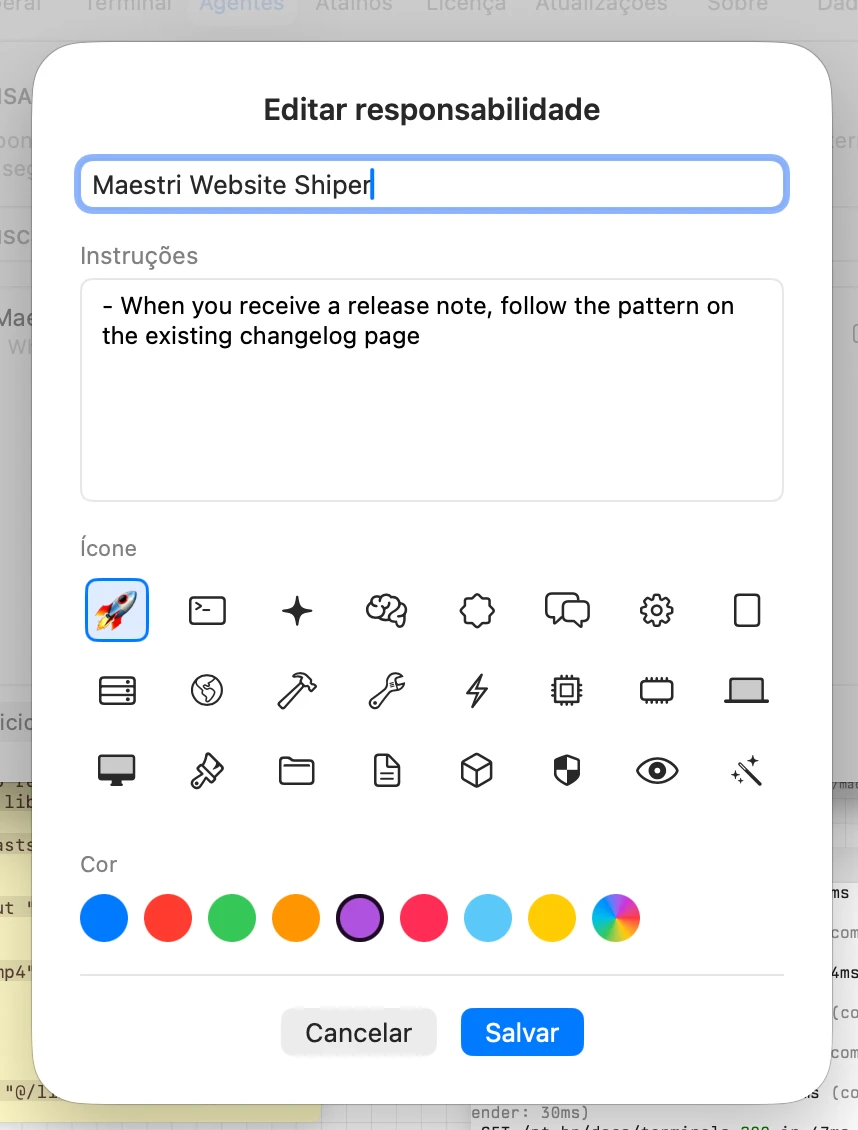
Roles work by starting the agent in a project subdirectory with its own CLAUDE.md / AGENTS.md, so each agent can have unique instructions. Alongside those, Maestri writes a portable role.json sidecar that describes the role — name, badge color, and prompt — so a role travels with the directory across workspaces and across machines.
Discovering roles in your repo
When you open the terminal Edit sheet, the Discover Roles button scans the working directory for role.json files and lets you import them. You see a preview of each discovered role and can multi-select which ones to add to your library — handy when checking out a teammate's branch that ships its own .maestri folder. It works on remote terminals too, over SSH, Docker, Sandbox, and Custom Runtime connections, not just local ones.
Right-click to delete
Role cards in the terminal Edit sheet support right-click → Delete Role with confirmation, so you can prune your library without leaving the sheet.
Appearance
The New Terminal and Edit sheets both carry an Appearance tab, beside Details and Role. It holds the terminal's icon and accent color, the theme it runs, and its font.
Everything you set there belongs to that one terminal. Leave the theme or the font alone and it follows the global default in Settings → Terminal, so a terminal only pins its own when you deliberately pick one.
Presets carry their own look
An agent preset in Settings → Terminal → Quick Start carries the same fields: icon, accent color, terminal theme, and font. Every way of creating an agent honors them — the Quick Start buttons in the New Terminal sheet, a terminal created from Maestri Remote, a teammate a Maestro recruits — so a preset you set up once arrives looking the same everywhere.
Terminal themes
Maestri ships with four theme cards in Settings → Terminal → Appearance: System, Dark, Light, and Custom.
The Custom card opens a full-window picker with 30+ built-in color schemes derived from the iTerm2 Color Schemes project — Dracula, Catppuccin, Tokyo Night, Gruvbox, Nord, One Dark, Solarized, Rosé Pine, Everforest, and more. Each scheme carries full color data including cursor-text, selection-background, and selection-foreground, and SSH terminals respect those too.
Follow system appearance
In the picker, toggle Follow system appearance and pair a light theme with a dark theme. Maestri switches between them automatically when the system flips between light and dark mode.
Bring your own themes
Drop any Ghostty-format theme file into ~/.maestri/terminal/themes/ and it appears in the picker under From your folder, alongside the built-ins. No restart required.
Right-to-left text
Arabic, Hebrew, and other right-to-left scripts render right-to-left in the terminal. Maestri follows the terminal-wg bidirectional text protocol, so an app that declares its own direction is honored as well. There's nothing to turn on.
Agent usage
Turn on Enable Agent Usage in Settings → Agents → Usage and a set of rings appears in the bottom-right corner of the window, beside the minimap and the zoom controls. Each ring is one agent's plan, and how much of it you've spent.
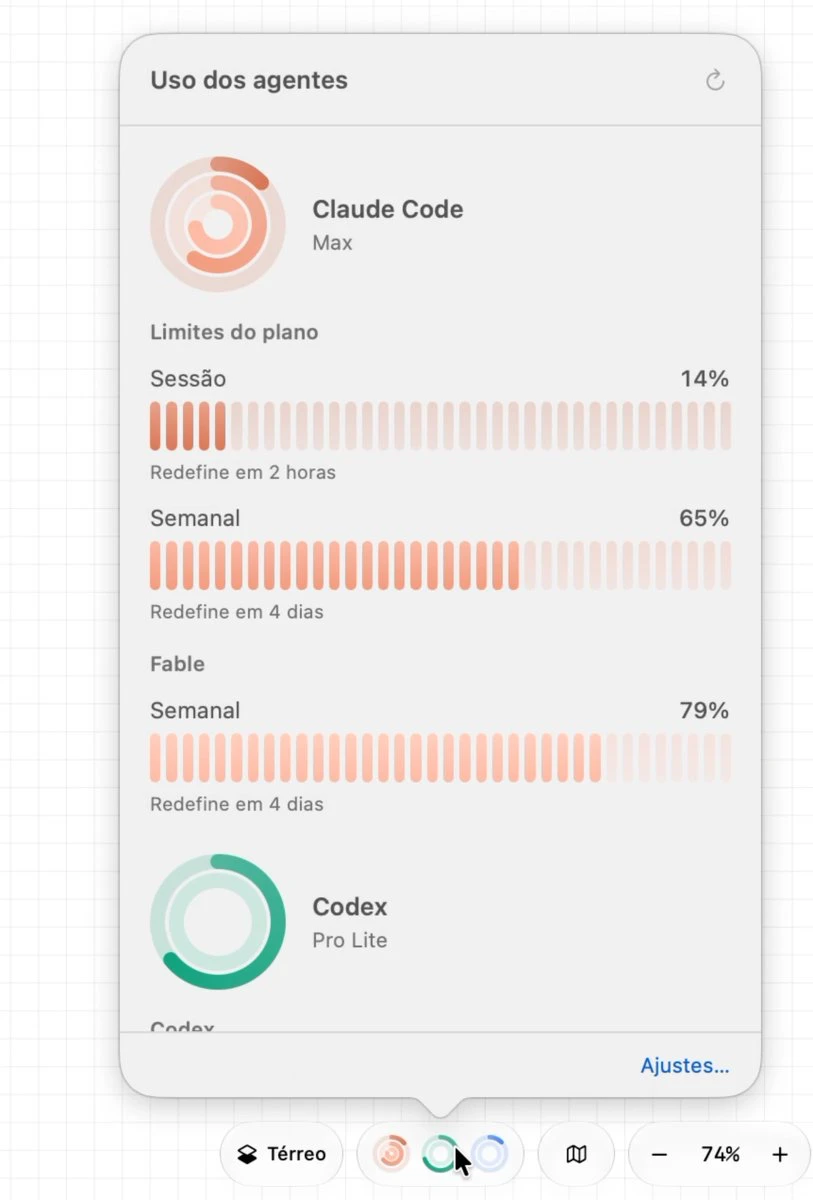
Click the rings for the detail. Every provider lists its plan, one meter per window the vendor reports (a five-hour window, a weekly one), the share used, when each window resets, and when Maestri last got an answer. Refresh asks again right away.
Maestri ships with providers for Claude, Codex, and Antigravity, each with its own switch and its own ring color.
Note
Maestri asks each agent's own CLI for its plan limits. It never reads your tokens and never contacts a vendor on its own. What you see is the account each CLI uses by default on this Mac, not the account of one specific terminal.
Polling stays quiet on purpose: the rings refresh only while they're on screen, three times less often while Maestri sits in the background, at most two providers at a time, and a provider that keeps failing backs off.
Bring your own provider
Each provider is one JSON file in ~/.maestri/usage/providers/, saying which program to run and how to read its answer. Maestri writes an AGENTS.md guide next to them that describes the format exactly, so you — or an agent — can add a provider for a CLI Maestri doesn't ship with. Copy a file to a new id to make a variation; editing a built-in marks it Modified, and Restore Default… brings the shipped version back.
Note
Turning Agent Usage off deletes the whole providers folder, including the files you added, so Maestri asks first when it finds any.
When an agent needs you
When a terminal stops producing output — usually because the agent is waiting on a decision or has finished its turn — Maestri marks it with a red attention dot in the header. Use Ctrl⇧A on the canvas to jump to the next one, cycling across every floor.
For the times you're not looking at the canvas, enable Notify when an agent needs attention in Settings → Notifications. Maestri then posts a system banner whenever a terminal lights up that dot — even when Maestri is the frontmost app. Clicking the banner focuses the corresponding terminal, switching workspace and floor automatically if needed.
Jumping between terminals
When your canvas has many terminals, keyboard navigation is essential.
Hold Ctrl — a number badge appears in the header of each terminal. While holding Ctrl, press the number to instantly focus that terminal.
Master this shortcut and you can switch between 9 agents nearly simultaneously without touching the mouse.
Removing a terminal
To remove a terminal from the canvas, select it and press ⌘W. This closes the terminal and removes it from the canvas.