Partituras
A partitura is a saved arrangement of your canvas: terminals with their agents and roles, notes, portals, file trees, drawings, groups, and every connection between them. Add it to any floor or workspace to bring that whole setup back in one move, or share it as a file so someone else gets your exact ensemble.
Partitura is Portuguese for a musical score — the sheet the orchestra plays from.
Creating a partitura
- Select what you want to save on the canvas — drag a selection box, or shift-click individual nodes.
- Right-click the selection and choose Partituras → Create New….
- Give it a name, and optionally a description, an icon, and an accent color.
- Click Create.
The New Partitura sheet shows a live preview on the left, rendered by the real canvas engine, so what you see is exactly what the partitura keeps. The Details tab on the right lists everything it carries: terminals and their startup commands, roles, notes, portals, file trees, text blocks, links, drawings, and connections.
Tip
Batuta Search has the same actions: New Partitura from Selection and Update Partitura from Selection.
Startup commands
Each terminal is saved with the command it launches, so the partitura recreates your agents exactly. Turn Include startup commands off to share the shape of an ensemble without your command lines — useful when your flags carry a token, a private path, or an internal hostname.
You can also edit commands one by one in the Details tab, which is how a terminal becomes a plain shell in the saved copy.
What a partitura keeps
Everything inside the selection travels: nodes with their names, icons, colors and sizes, note text, portal URLs, drawings, groups, and every connection whose both endpoints are part of the selection. The role presets your terminals reference are embedded in the partitura itself, so a shared file arrives with working roles instead of dangling references.
Partituras are blueprints, not backups. These are stripped when a partitura is saved:
- Terminal scrollback, running state, and exit codes
- SSH, Docker, Sandbox, and custom runtime configs, plus environment overrides
- Absolute filesystem paths — working directories, shell paths, file tree roots
- File attachment nodes and cross-floor connectors
- Portals pointing at a local file or folder
Note
Paths are refilled from the destination when you add the partitura, so terminals and file trees land in the working directory of whatever workspace you dropped them into.
The Partituras palette
Open the palette from the book icon in the toolbar, with Ctrl⇧L, or through Batuta Search. It's a floating panel, so it stays with you while you work the canvas.
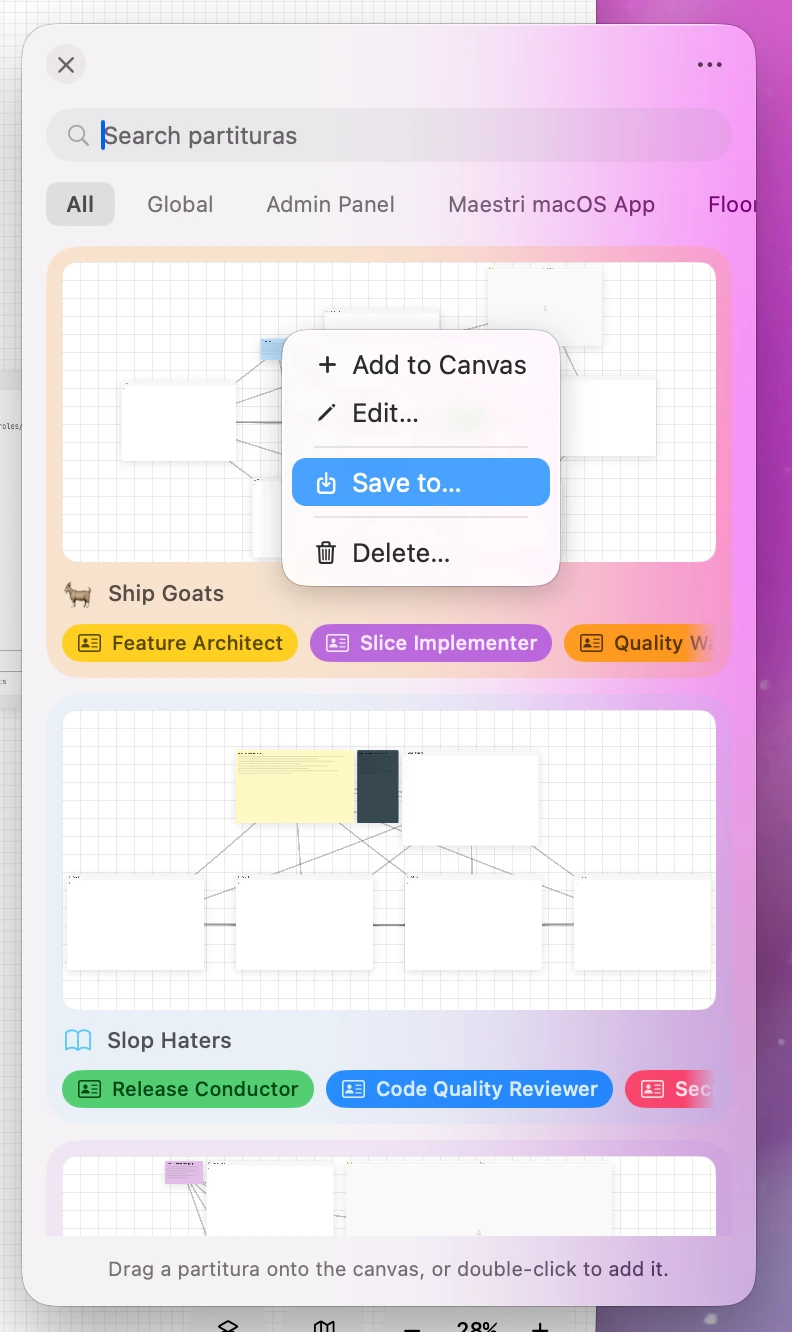
Each card shows a schematic preview of the layout and the roles it brings. Search matches a partitura's name, description, role names, and the name of the workspace it belongs to, so "the one with the reviewer" is as good a query as its title.
To add one:
- Drag a card onto the canvas to stamp it where you drop it
- Double-click a card to add it at the center of your viewport
Everything the partitura contains arrives selected, so you can move it as one block before doing anything else.
Right-click a card for Add to Canvas, Edit…, Save to…, and Delete…. Deleting a partitura only removes it from your library — layouts already on your canvases are untouched.
Tip
The toolbar button can be turned off in View → Toolbar Buttons, and the shortcut can be changed in Settings → Shortcuts.
Global or workspace-scoped
Every partitura is either Global, meaning it shows up in every workspace, or scoped to a single workspace. New partituras default to the workspace you're in, since most setups are project-specific.
The filter pills under the search field follow the same vocabulary: All, Global, and one pill per workspace. A partitura scoped to a workspace that doesn't exist on your machine — one that arrived from someone else — behaves as global rather than disappearing.
Editing and updating
Edit… changes a partitura's identity: name, description, workspace scope, icon, and color. The layout stays as it is.
To replace the layout, select the new arrangement on the canvas, right-click, and choose Partituras → Update Existing…. Pick the partitura from the list and compare its current layout with the one about to replace it, side by side.
Updating keeps the partitura's identity — id, name, icon, color, description, and creation date — so copies you already shared stay recognizably the same partitura. Roles are recomputed from the new selection, so an agent you added since the last save brings its role along.
Warning
Updating overwrites the saved layout and can't be undone.
How roles are merged
When you add or import a partitura, Maestri reconciles the roles it carries with the presets you already have:
- A role you already have by id is used as it is
- A role whose name matches one of yours reuses your definition, and the partitura's terminals are remapped onto it
- A role that's genuinely new is added to your presets, scoped wherever the partitura is scoped
Importing a single file lets you decide each name collision yourself: Keep Mine, Use Theirs (your preset takes the incoming prompt, color, and icon), or Keep Both (the incoming role is added under a uniquified name).
Sharing a partitura
Drag a card out of the palette and into Finder, Slack, Mail, or AirDrop to get a .maestripartitura file. Save to… in the card's context menu does the same through a save panel.
To move a whole library, use the ⋯ menu at the top of the palette:
- Export All Partituras… writes every partitura into a single
.maestripartiturasbundle - Import Partituras… accepts any mix of single files and bundles
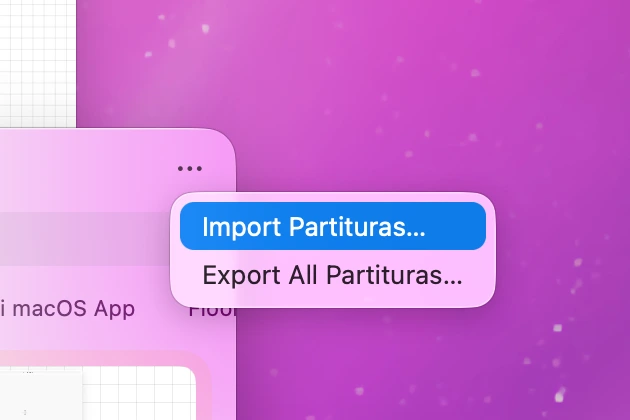
You can also double-click a partitura file in Finder or drop it onto the canvas — both send it to your library rather than creating a node.
Reviewing an import
A single file opens a review sheet before anything lands: the layout preview, the author's description, the workspace scope it should be filed under, the roles it adds, any role conflicts to resolve, and a notice if it replaces a partitura you already have. Commands can be corrected right there, so a partitura that launches an agent you don't run is still usable.
Warning
Adding a partitura to a canvas starts its terminals and runs their commands on your machine. Only accept a partitura from a source you trust, and read the commands listed in the review sheet before adding it to your library.
Importing several files at once, or a bundle, is treated as a library transfer: it gets one consent step instead of a sheet per file, your local roles win any name collision, and partituras you already have are skipped, so re-importing is a no-op.
Where partituras live
Each one is a single JSON file under ~/.maestri/partituras/, and it's the same document you get when you export or share one. Plain text you can read and diff, with no database in the way.