Bands
A Band gathers terminals into one node on the canvas: the member list on the left, and the live terminal or chat of the member it shows on the right. Every member stays a real terminal, with its session, history, role and account. A team that had spread across the canvas becomes one node you switch through.
Creating one
Select two or more terminals and click Create Band in the toolbar above them, or right-click the selection and choose Create Band.
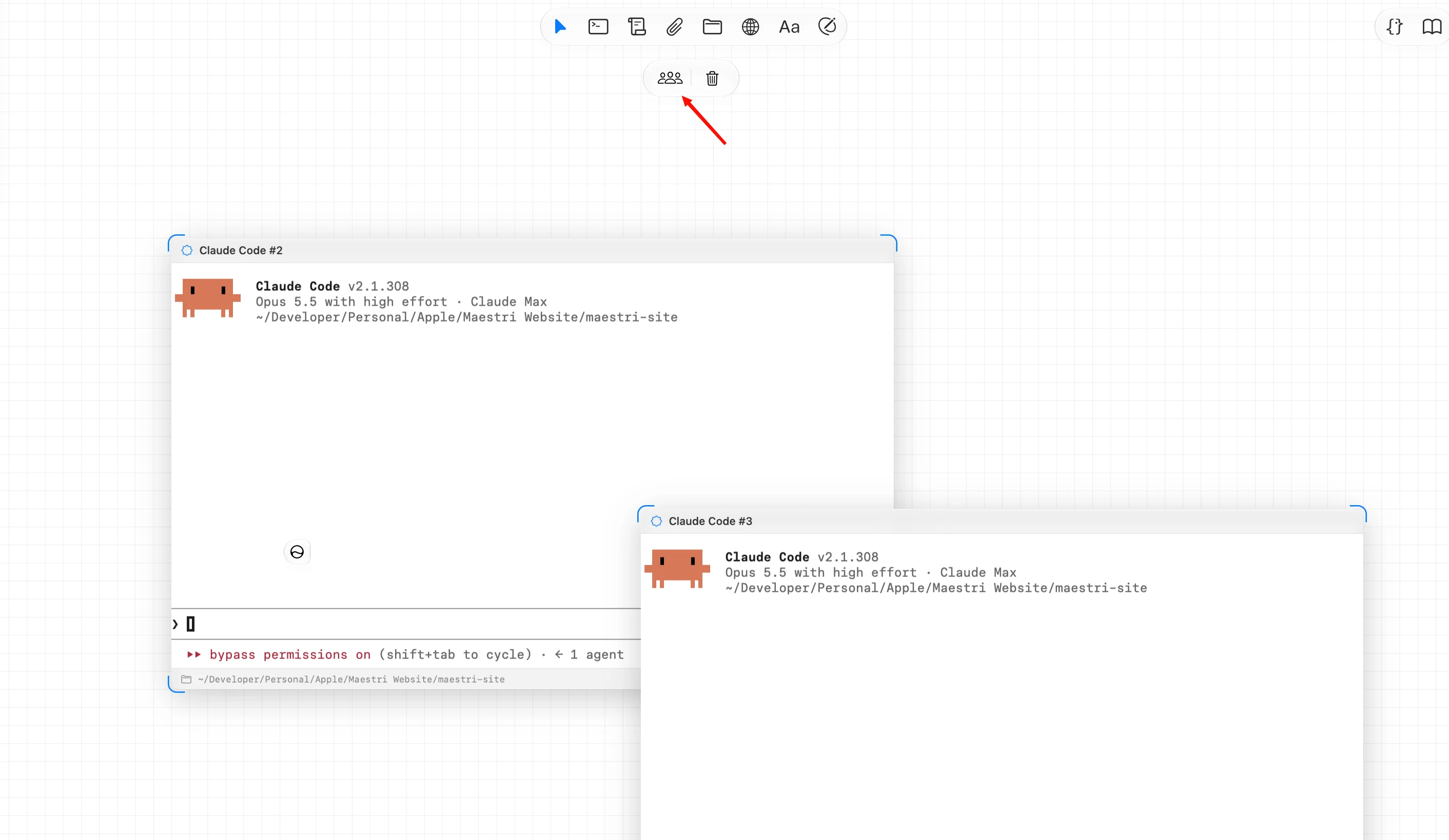
The band takes the place of one of its members, and the terminal you were working in stays in front. Creating a band never starts, stops or prompts anyone. Every agent carries on exactly as it was.
Adding and removing members
- Add a terminal: drag it onto the band, or right-click it and choose Add to Band. The + in the band's header also offers New Terminal… and Add Existing Terminal.
- Take one out: drag its row from the list onto the canvas, or right-click it and choose Remove from Band. It keeps running, with its session and its connections.
- Move one to another band: drag its row onto the other band.
- Reorder: drag a row up or down the list.
A terminal is in one band at a time, and a band and its members live on the same floor. A band left with a single member dissolves on its own, since one terminal is just a terminal.
Switching between members
Click a member in the list to bring it to the front. The others keep working while you look at someone else, and the list tells you who needs you: a red dot means a member is waiting on you, and a dot in your accent color means it's working. Members in chat also show their last message and when it arrived.
- Filter at the top of the list finds a member in a big band.
- Hold Ctrl (or the jump modifier you chose) to see each member's number, then press it to jump straight to that member, as with any terminal.
- Drag the edge between the list and the terminal to resize the list. Pull it narrow enough and it folds into a column of avatars.
Maestros on top
A Maestro is pinned to the top of the list as a large tile, so you always see who's leading. The spot follows the terminal's own Maestro Mode: right-click a member and turn on Maestro to pin it, or turn it off to send it back to the list. Dragging only reorders members within their own group.
Connected as one
Members reach each other without any ropes: every agent in a band can message every other one. Connect the band to something and the whole team is connected to it. A rope to a band reaches every member, whether it leads to an agent, a note, a fichário or a portal. See Connections for how ropes work.
- A terminal that joins brings its ropes to the band, and is wired to everything the band is connected to.
- A terminal that leaves takes its own copy of each of the band's ropes.
- A terminal moved straight into another band arrives with that band's connections only. Drag it to the canvas first if it should keep what it had.
When members message each other, you can watch it happen: a dotted line travels across the list from the sender to the receiver.
Let your Maestro start the band
A Maestro can sort its own team into bands. Ask in plain words:
"Split the team into two bands, frontend and backend, and stay out of both so you can coordinate them."
Behind the scenes it runs maestri band:
maestri band create "Name" ["Agent" ...] [--without-me]
maestri band add "Band" "Agent"
maestri band remove "Band" "Agent"
maestri band dissolve "Band"
- With no names,
band creategathers everyone connected to the Maestro on its floor who isn't in another band. Name agents to split the team into several bands. - The Maestro joins the band it creates on its own floor.
--without-mekeeps it out, so it can coordinate several bands from outside them. --iconand--colorstyle the new band, and--floorand--workspacechoose where it goes.- A teammate recruited while the Maestro is in a band joins that band, and
maestri recruit --band "Name"puts one straight into another. - A Maestro only gathers agents it's connected to, and taking members out or dissolving a band never stops anyone.
maestri listshows its bands and who is in each.
Note
Agents only create bands when you ask for one. Left to themselves, they keep recruits as separate terminals, which are easier to follow on the canvas.
Editing, dissolving and deleting
Right-click the band and choose Edit Band… to change its name, icon and color. The color tints the member list and the band's icon.
- Dissolve Band sends every member back to the canvas as a separate terminal, still running.
- Delete Band asks first. Keep Terminals dissolves the band; Delete Terminals Too closes every member along with it.
Creating a band, changing its members and dissolving it can all be undone with CtrlZ. Undo puts the arrangement back without rewinding anything the agents did since.
In Maestri Remote
Bands come along to Maestri Remote. Open one and its members sit in a sidebar beside the member it shows, Maestros pinned on top, as on your computer. From there you can switch members, add and remove them, and change the band's name, icon and color.
Note
An older version of Maestri can't show bands. It opens the workspace with the members laid out as separate terminals and a note in each band's place asking you to update.