Computer Use
Computer Use lets your agents read and use the other apps on your computer: look at a window, click, type, drag, draw and choose menu items. It happens in the background, so your pointer doesn't move, the app doesn't come to the front, and you keep working while they do.
Turning it on
Open Settings → Agents → Control and turn on Let agents use other apps.
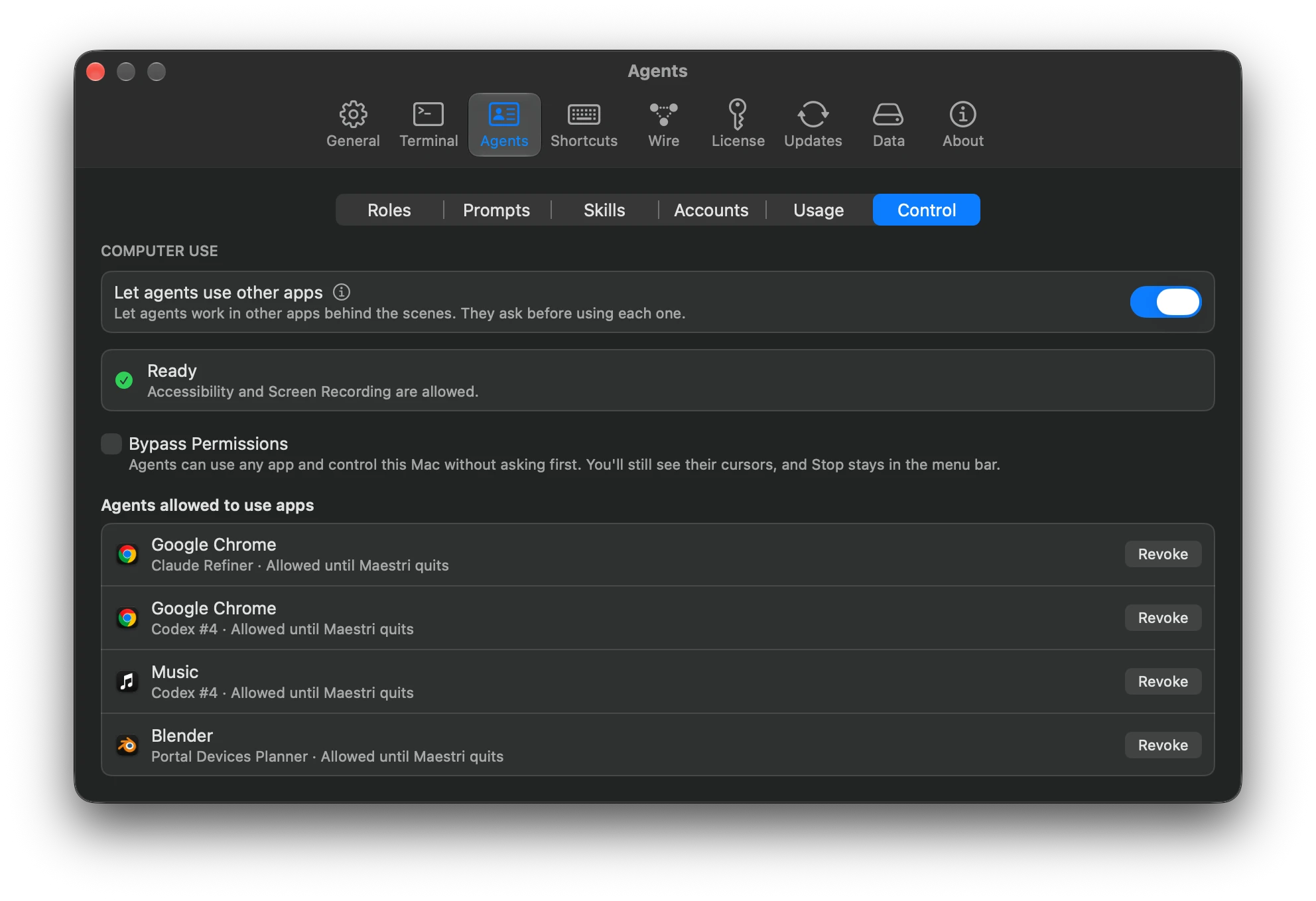
On the Mac, a small helper inside Maestri called Maestri Computer Use needs the Accessibility and Screen Recording permissions. Settings shows what's missing and says Ready once both are allowed. The helper holds those permissions, so the terminals in Maestri never get them.
Asking an agent
Ask in your own words, like "add this week's expenses to my budget in Numbers". An agent in any Maestri terminal can do it, with nothing to connect first. To point it at the feature, type @ in the prompt composer and pick Computer Use.
If the agent's terminal is on another machine, such as over SSH, the apps it uses are still the ones on the computer running Maestri.
Tip
For a website, a portal is often the better fit: it sits on the canvas, where you can watch the agent work. Computer Use is for everything else, including the browser you're already signed in to.
Allowing apps
The first time an agent needs an app, a card asks you, naming the agent and the app:
- Allow: until you revoke it or quit Maestri.
- Allow for 1 Hour: sixty minutes from your answer, however much the agent does in that time.
- Don't Allow: the agent won't ask for that app again while its terminal's process runs.
The answer belongs to that agent and that app, so another agent asks for itself. On the Mac, you can also answer from Maestri Remote, which notifies you when you're away.
Maestri itself is off limits, so an agent can never answer its own prompt.
Watching and stopping
Every agent has its own cursor over the window it's using, labeled with its terminal's name. Several agents can work at the same time, and their commands to the same app take turns.
While an agent is at work, Maestri shows an item in the menu bar with each agent and the app it's using. Stop halts one agent and Stop All halts them all, and a stopped agent has to ask again before it uses any app. Stop is in Settings → Agents → Control too, in case you've hidden the menu bar item.
Agents allowed to use apps, in the same place, lists what you've allowed, and how long an hour's permission has left. Revoke takes one back.
Control mode
Some things can't be reached from the background: the Dock, status items in the menu bar, Spotlight, system dialogs, and web pages that track the mouse button themselves. For those, an agent can ask to control the whole computer with your real pointer and keyboard. It's meant for when you're away, and it has a prompt of its own.
You stay in charge while it runs:
- Move the mouse or type to pause it. The agent picks up again only after you've left the computer alone.
- Choose Stop in the menu bar, or press Escape three times, to end it.
One agent has control at a time. Control also ends after a few minutes without a command, or when the hour you allowed is up. A locked Mac stays locked, and the agent never types on the lock screen.
Bypass Permissions
With Bypass Permissions checked in Settings → Agents → Control, agents can use any app and control the computer without asking first. You still see their cursors, and Stop stays in the menu bar. An agent you've stopped still has to ask.
On Windows and Linux
Computer Use is in Maestri for Windows and Linux too, under the same setting, with the same prompts. What an agent can do from the background depends on the system.
Windows
- Agents work behind your window with your keyboard left to you, several at once, each with a cursor showing its name.
- From behind other windows, they use a web browser, reading pages, clicking and filling forms, and select, delete, copy and paste in File Explorer.
- Canvases and games, such as Paint, need control mode.
- Agents in WSL and SSH terminals use the apps on the machine running Maestri.
Linux
- On Xorg, agents work behind your other windows, each with a cursor showing its name, and fill browser forms in Firefox and Chromium.
- On Wayland, the Ubuntu default, agents read windows and click from behind in Firefox and Chromium. Browser forms and page scrolling in Firefox need control mode, agents have no cursor, and Stop is in the top bar.
- Double click, right click, drag and draw need control mode.
- Agents in SSH terminals use the apps on the machine running Maestri.
The computer command
Agents learn the maestri computer command from a skill Maestri installs, so you don't need to type it yourself. A typical run reads a window, then acts on what it found:
maestri computer apps
maestri computer snapshot --app Music
maestri computer click --app Music @e3
maestri computer fill --app Mail @e2 "Quarterly numbers"
maestri computer menu --app Preview "File > Export…"
maestri computer screenshot --app Blender
For control mode:
maestri computer control
maestri computer click 640,400
maestri computer release
Run maestri computer with no arguments for the full list.