Maestri Box
Maestri Box is Maestri running on a Linux server, with no screen. You pair it with Maestri on your computer or with Maestri Remote, and it shows up in your spaces like any other computer.
Its canvas stays alive when nobody is looking, so your terminals and agents keep working while your own computer is off.
Requirements
- Linux: Ubuntu 24.04 or 22.04, or Debian 12.
- CPU: x86_64 or arm64.
- Memory: 1 GB, or 2 GB if agents like Claude Code or Codex run on it.
- Disk: about 1 GB.
- Network: a TCP port open to your devices, 7434 by default (you can change it), or a private network like Tailscale.
Alpine, NixOS and hosts that pause after a few minutes aren't supported. Most VPS providers work, including Oracle Cloud's free arm64 machine.
Install
First, check the machine. This changes nothing:
curl -fsSL https://themaestri.app/box/script.sh | bash -s -- --check
Then install it from your own account:
curl -fsSL https://themaestri.app/box/script.sh | sudo bash
The installer sets up the maestri-box service, starts it, and shows a pairing code when it's done. Running it again updates the Box and keeps your data and pairings.
Which account it runs as
By default the Box runs as your account, so its agents can use your projects, your git and SSH keys, and your Claude or Codex logins.
That also means a paired device with Full control can do anything your account can. If other people will pair with the Box, give it a dedicated account instead:
curl -fsSL https://themaestri.app/box/script.sh | sudo bash -s -- --system-user
Use --user <name> to run it as another existing account. Pass the same option to --check so it checks that account. The Box never runs as root.
Pairing
The installer ends with a pairing code. To show one again, run this in a terminal on the server:
maestri-box pair
Every maestri-box command on this page works without sudo in a terminal on the Box. Add sudo only when you're logged in to the server as a different account, for example over SSH as root.
It prints the Box's address and a six-digit code, plus a QR code.

In Maestri Remote, scan the QR code.
On your computer, click the + at the end of the space icons and choose Another Computer. Enter the address and the code, then click Pair.
The Box appears as a new space. Open its workspace and you're working on the server.
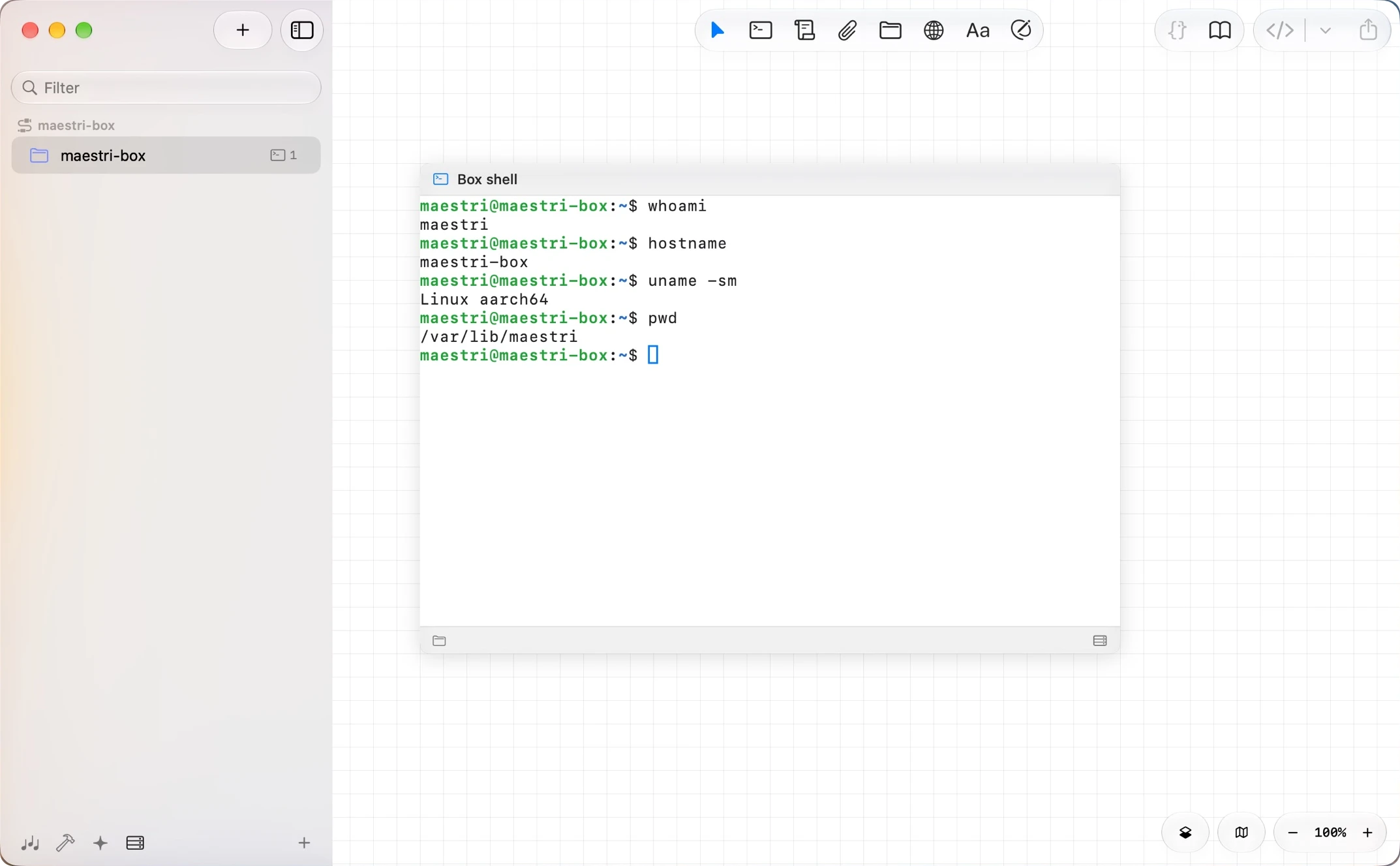
To pair more devices, open Pairing in the Box's settings on a device that's already paired, or run maestri-box pair in a terminal on the Box.
Tip
On AWS, Oracle Cloud and Tencent Cloud the public address isn't on the machine, so the Box only sees private ones. Pair with maestri-box pair --host <public address> and it remembers it.
Each device is either Full control or Read-only. Change it, or revoke a device, in the Box's settings under Devices.
Keeping pairing safe
- A code only exists while pairing is open, and it changes every few minutes.
- Wrong guesses are throttled: five per address, then longer and longer waits. Ten across the whole server retire the code.
- Every new device shows a notification and appears in Devices, where you can revoke it.
- Pairing with the QR code also checks that it's really your Box on the other end.
To keep the Box off the public internet altogether, put it on a private network like Tailscale. See Network.
Settings
On a Mac or PC, the Box's settings are the same pages as Maestri's own Settings, filled in from the Box. Right-click the Box's space icon and choose Settings…, or go to Settings → Wire → Devices, select the Box and click Settings…. Only devices with Full control can open them.
- General: System shows which version of Maestri Box it runs and any warnings from its checks. Notifications, Environments and Git work as in your own Settings.
- Terminal: Appearance has the Box's terminal colors and default theme, each with a reset to the Box's own default. Advanced has the memory limit per terminal.
- Agents: Roles, Accounts and Usage. Signing in to an account opens a terminal on the Box's canvas, where you log in as you would on your own computer.
- Wire: Pairing has the code and QR code to pair another device, and the Box's addresses for pairing a computer by hand. Devices lists every device paired with the Box, each with Full control or Read-only, and Revoke.
- License: whether the Box is licensed, in its trial with the days left, or past its trial. Activate a key here, or Deactivate it. When the trial has ended, this is also where you choose, once, the workspace that stays free.
- Updates: Check for Updates…, and Update Now… when an update is ready.
- Data: the Box's backups.
Maestri Remote has a shorter set of them. Open it from the Box's space menu with Computer Settings….
Terminal colors
A Box has no screen, so its terminals use the colors you pick in Terminal Appearance: Dark, Light, or Follow one of your devices, so the Box's terminals switch whenever that device goes light or dark. By default they follow the first device you paired.
Running terminals switch at once, and agents that support it switch their colors live too, like Claude Code with its theme set to auto.
Network
Open TCP port 7434 in your provider's firewall, and in ufw or firewalld if one is on. On Oracle Cloud, also run sudo iptables -I INPUT -p tcp --dport 7434 -j ACCEPT and sudo netfilter-persistent save.
To keep the Box off the internet, bind it to a private address, like its Tailscale address:
maestri-box config listen-address 100.101.102.103
config listen-address all listens everywhere again. To use another port, run maestri-box config port 7500, or install with curl -fsSL https://themaestri.app/box/script.sh | sudo MAESTRI_BOX_PORT=7500 bash.
Updates
The Box checks for updates when it starts, every 24 hours, and when one of your devices connects, at most once an hour. It never installs one on its own.
When a new version is out, your devices show it. Click Update Now… in the Box's settings, from your computer or Maestri Remote. The Box restarts, and its running terminals stop. Check for Updates… checks right away.
On the server, sudo apt update && sudo apt upgrade does the same. Your data and pairings stay.
License
A new Box starts with a 7-day trial. To activate your key, open License in the Box's settings, or run this in a terminal on the Box, from Maestri or Maestri Remote:
maestri-box license activate
After the trial, without a key, the Box keeps one workspace free. Choose which one in License, or with maestri-box license pick.
Commands
pair [--host <address>]    show a pairing code and wait for a device
status                     is it running, and where it listens
doctor                     check the Box and say how to fix what's wrong
devices                    paired devices
remove <name or id>        unpair a device
password set | clear       a password to pair Maestri Remote by hand
license status | activate  the license
config port <number>       listen on another port
config listen-address <ip | all>
setup --user <name> | --system-user
Run each one as maestri-box <command>, and maestri-box --help for the rest. Logs are in journalctl -u maestri-box.
Limitations
- An account that also uses the Maestri desktop app on the same machine, open or not, can't run the Box. Use
--user <name>or--system-user. - Web pages in portals can't open native windows. Popups open as portals, and downloads, printing and file pickers don't work.
- In a container, use an Ubuntu or Debian image, a non-root user with a volume on its home, and the port published. Pair with
--host, since the container only sees its private address.
Troubleshooting
My device can't reach the Box. Run maestri-box doctor. It tells you what's wrong and how to fix it. Most of the time the port is closed in a firewall.
The code expired. Run maestri-box pair again.
Uninstall
sudo apt remove maestri-box
Your data stays in the Box account's home. sudo apt purge maestri-box also removes the dedicated maestri account, if the Box created it.