Spaces
Spaces split your sidebar into separate lists of workspaces. Keep work and personal projects apart, or one space per client, and switch between them in one click.
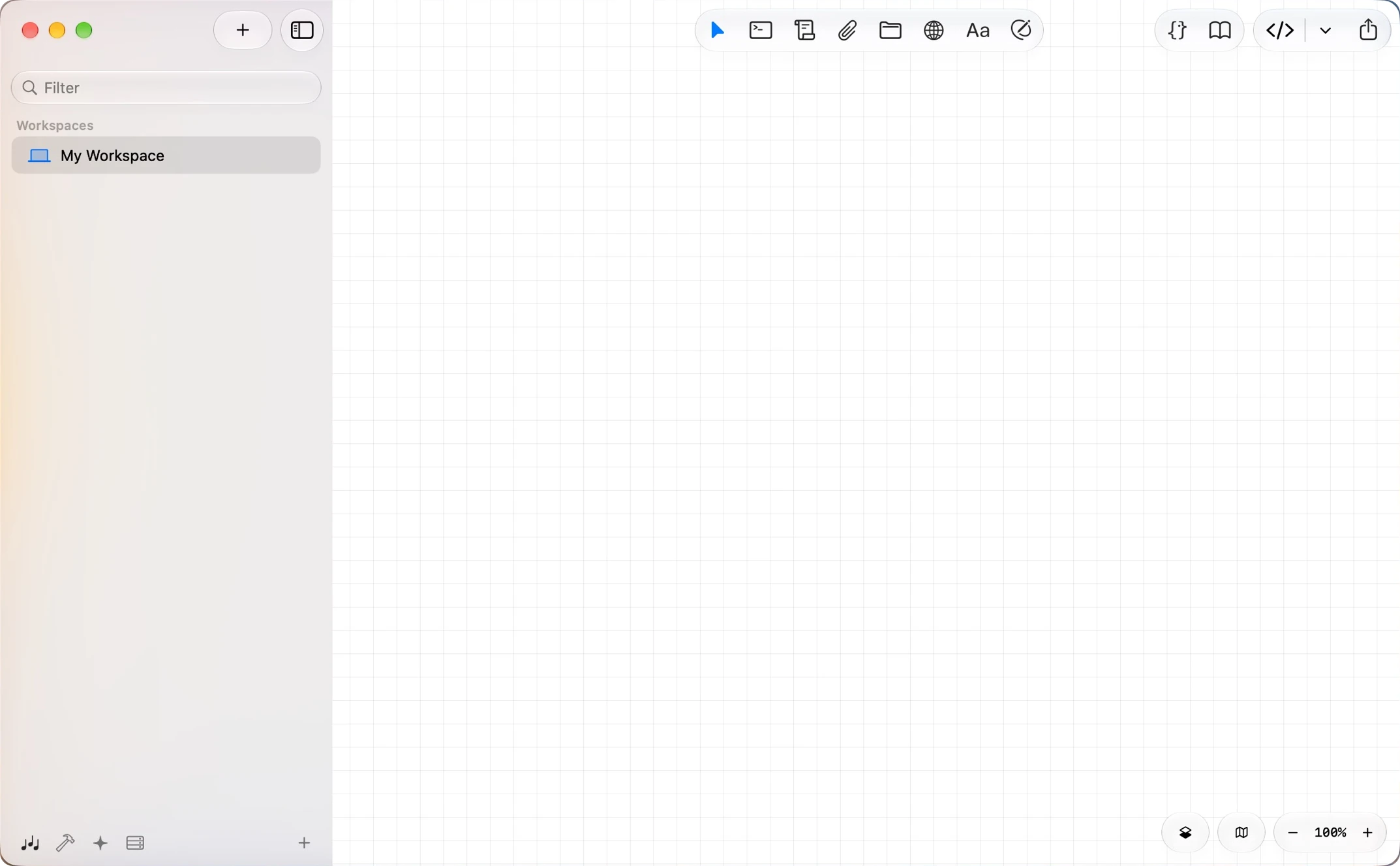
Switching spaces
Your spaces sit as a row of icons at the bottom of the sidebar.
- Click an icon to switch to that space.
- Drag an icon to reorder the row.
- Swipe with two fingers over the sidebar to move to the next space (Mac trackpad).
A red dot on an icon means an agent in that space needs you.
The first space holds all the workspaces you had before. You can rename it, but it always stays first and can't be deleted.
Creating a space
Click the + at the end of the row. Give the space a name, pick an icon and a color, and click Create.
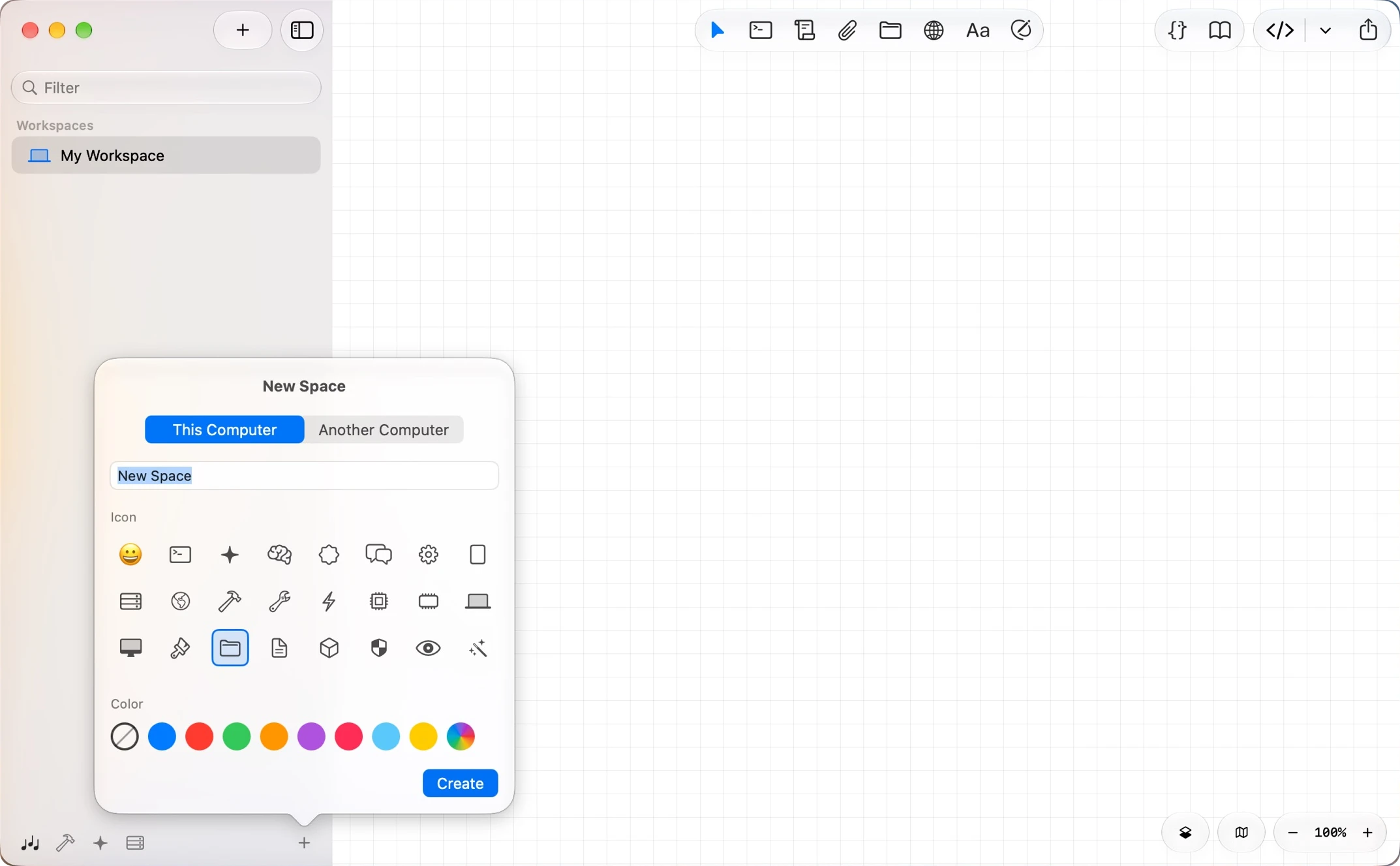
To change a space later, click its icon while you're in it, or right-click it and choose Edit Space…. The same menu has Delete Space…, which moves its workspaces to your first space, so nothing is lost.
Moving workspaces
Right-click a workspace in the sidebar and choose Move to, then pick a space. New Space… at the bottom creates a space and moves the workspace into it.
Spaces from another computer
A space can also show another computer running Maestri. Its workspaces show up in your sidebar, and you work on its canvas as if you were sitting at it. Its terminals and agents keep running over there.
To pair one, both computers need Maestri Wire on:
- On the other computer, open Settings → Wire → Pairing. It shows its address and a six-digit code.
- On this computer, click the + at the end of the row and choose Another Computer.
- Enter the address and the code, then click Pair.
Each of its spaces now sits in your row next to your own. A Maestri Box pairs the same way.
When that computer is off or out of reach, its icons dim and Maestri reconnects on its own once it's back.
Copying between computers
Copy elements on one computer's canvas and paste them on another's, whether it's your Mac, a Windows or Linux PC, or a Box. File and image cards arrive with their files, and notes with their images, up to 2 GB per file. A toast shows the progress while they send.
Files you drop or paste from your disk onto another computer's canvas work the same way.
A note card on another computer's canvas shows as much of the note as the card has room for. Resize the card to see more.
Spaces in Maestri Remote
In Maestri Remote, the round button next to the search field shows the space you're in. Tap it to switch spaces. The space's menu has its details and actions.
Import Workspace and Backups are only in the desktop app.
Spaces for agents
An agent in Maestro Mode can organize your spaces with the maestri CLI:
maestri space list
maestri space create "Clients" --icon folder --color blue
maestri workspace move "Acme Churn Analysis" --space "Clients"
Run maestri space --help to see everything it can do.