Screen Control
Screen Control shows you a computer's whole screen and lets you use it with your own pointer and keyboard: from another computer running Maestri, or from Maestri Remote on your iPhone, iPad or Android device. It works with any app on that computer, and when it's locked, a Mac can be unlocked from where you are.
It runs over Maestri Wire, on the same pairing as everything else, so there's nothing else to install or sign in to.
Turning it on
Screen Control is given device by device, on the computer you want to control:
- Open Settings → Wire → Devices.
- Open the access menu of a paired device and choose Full control with screen.
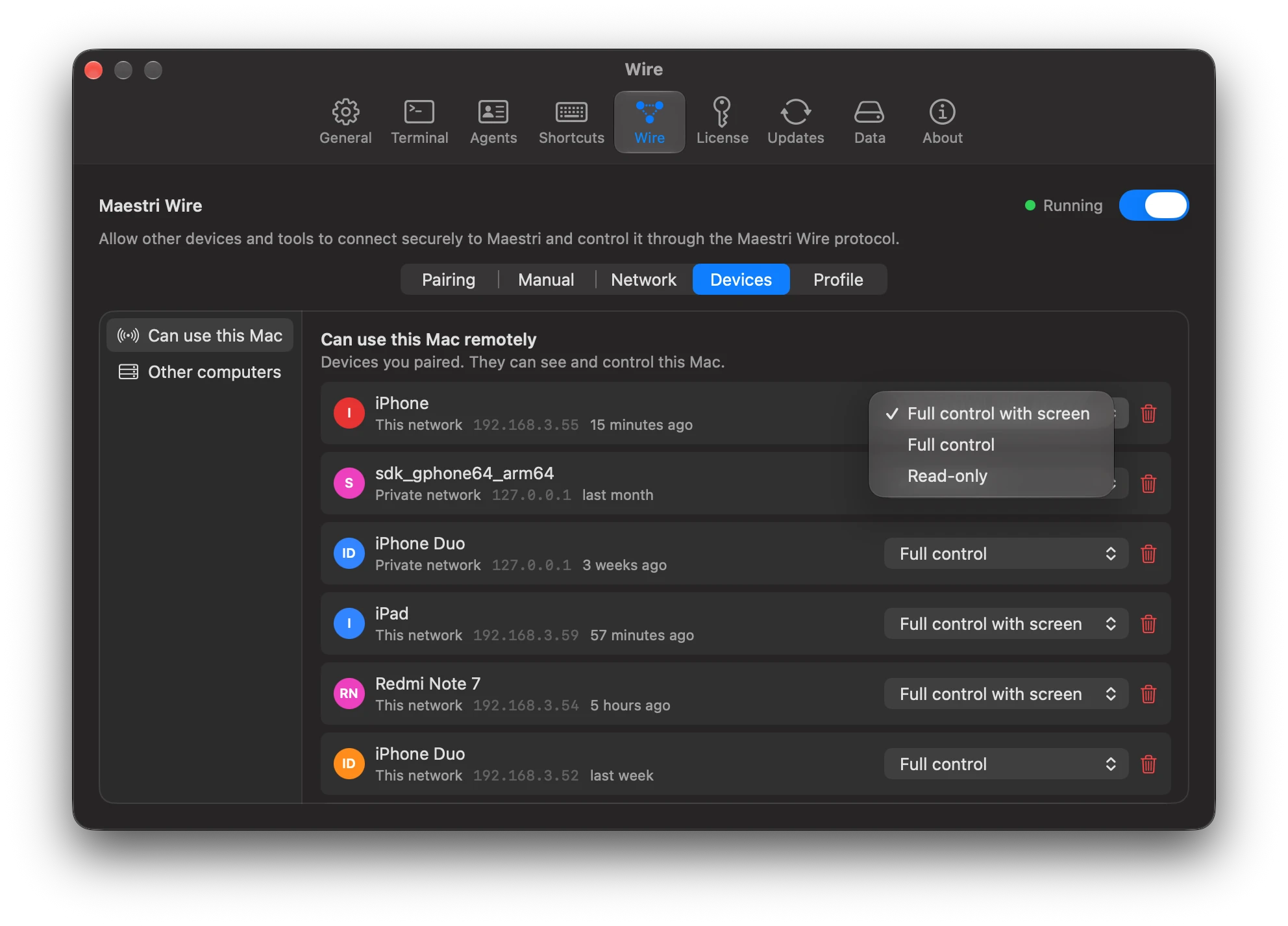
Only devices given it can open the screen. To take it back, choose Full control or Read-only, which also ends a session that's open. Access is only ever changed at the computer, never from the device.
On a Mac, Screen Control uses the same helper as Computer Use, which needs the Accessibility and Screen Recording permissions. If they're missing when you choose Full control with screen, Maestri walks you through them. From macOS 27.3, the helper needs full access, not only the apps you chose: with less, you can see the screen but not control it.
Opening a screen
From a computer: the other computer's space shows a Screen Control button when you click its icon, and the same item when you right-click it. The screen opens in its own window, named after the computer.
From Maestri Remote: choose Screen Control in the computer's ⋯ menu.
Only devices given the screen see it. One device controls a computer's screen at a time: opening it from another device takes over, and ends the first one's session.
Using it
In a window on your computer, click, drag, scroll and type as you would at the other computer. Shortcuts go there too, all but the one that closes the window (⌘W on a Mac). On Windows and Linux, press Ctrl+Alt+Home to bring the keyboard back to your own computer.
On a phone or tablet, the screen is a trackpad with a pointer drawn on it:
- Move a finger anywhere to move the pointer, faster the faster you go.
- Tap to click, tap twice to double click, and tap with two fingers to right click.
- Drag two fingers to scroll, and pinch to zoom in.
- Tap, then touch and hold to pick something up and drag it.
- Swipe with three or four fingers as on a Mac's trackpad: left or right to switch desktops, up for Mission Control.
The keyboard sends what you type key by key. The key row above it holds the modifiers, Esc, Tab, the arrows, the display picker and the computer's own shortcuts, such as App Switcher, Spotlight and Mission Control on a Mac. A phone keeps the shortcuts in the ⋯ at the end of the row, and an iPad or a tablet shows them as keys when there's room.
On a computer with more than one display, pick the one to show from the display picker.
Locked and sleeping screens
If the screen is locked, you see the lock screen as it is.
- A Mac can be unlocked from where you are: type its password in the field Screen Control offers, and it's typed on the lock screen.
- Windows doesn't let anything type on its lock screen from afar, so Screen Control asks you to unlock it at the computer. If you plan to use it while you're away, leave it unlocked. The computer's Settings tells you when it can't be unlocked remotely.
If the display is asleep, click or tap the screen, or choose Wake Display. Ending Screen Control never puts the computer to sleep and never disconnects the Wire.
At the computer
While a device is controlling the screen, the computer shows it in the menu bar on a Mac, or in the system tray on Windows and Linux: the device's name and Stop Screen Control. The person at the computer can end it there at any time, and they can keep using the computer alongside.
On Windows, apps running as administrator don't take input from Screen Control. When one is in front, the window names it and offers Try to Recover, which minimizes that app so you can go on.